RAM vs ROM: What You Need to Know About Computer Memory
Computer memory is fundamental to how any computer system operates. We often discuss two primary types of memory, RAM and ROM, but they serve distinct functions. Understanding their differences is key to grasping how your computer works. This article will explain what RAM and ROM are, how they function, and their respective roles in a computer system.
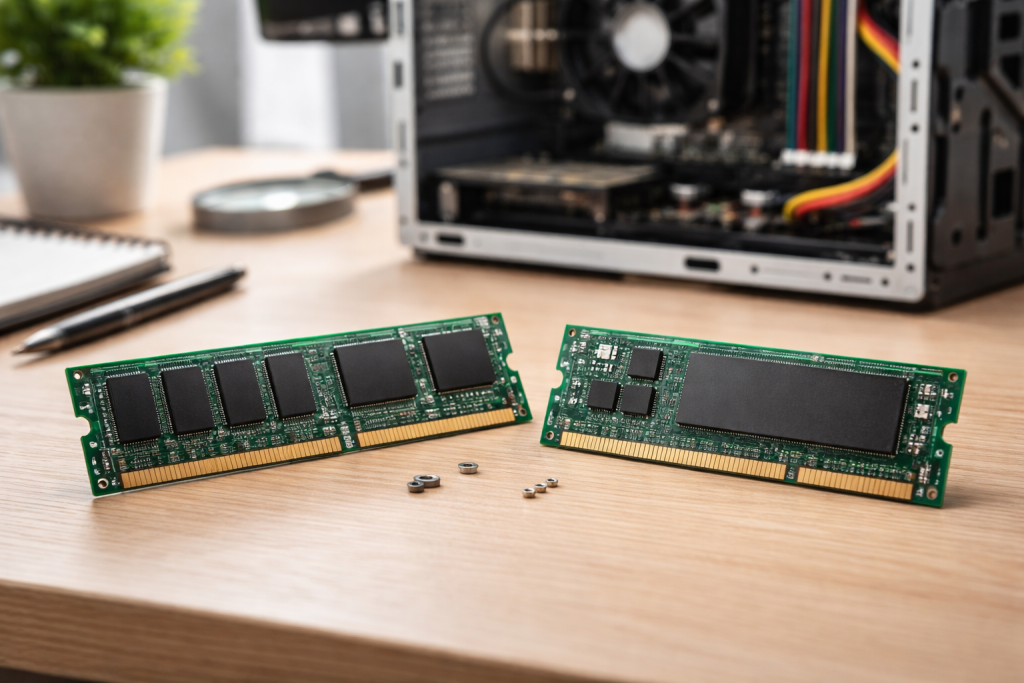
RAM, or Random Access Memory, is a form of volatile memory. This means that when the power is turned off, the data stored in RAM is lost. Think of RAM as your desk. When you’re working on a project, you take out all the necessary documents, tools, and materials and spread them across your desk for quick access. This allows you to work efficiently. RAM functions similarly for your computer.
How RAM Works
When you open an application, load a document, or browse the internet, the computer temporarily copies the necessary data and program instructions from the slower, more permanent storage (like a hard drive or SSD) into RAM. The CPU (Central Processing Unit) then accesses this data directly from RAM. Because RAM is significantly faster than storage drives, this direct access allows the CPU to process information quickly, leading to a responsive user experience. If we compare RAM to a desk, then the CPU represents you, the worker, who picks up items from that desk.
Types of RAM
There are various types of RAM, with the most common in modern computers being DRAM (Dynamic Random Access Memory) and its derivatives like SDRAM (Synchronous Dynamic RAM) and DDR SDRAM (Double Data Rate SDRAM). DDR generations, such as DDR4 and DDR5, denote improvements in speed and efficiency. Different types of RAM are not interchangeable; a motherboard designed for DDR4 will not accept DDR5 modules.
RAM and Computer Performance
The amount and speed of RAM directly impact computer performance. More RAM means your computer can hold more programs and data that are readily accessible to the CPU. If you have too little RAM, your computer will frequently have to move data between RAM and the slower storage drive (a process called “swapping” or “paging”). This is like constantly having to put items away in a cabinet and retrieve them again because your desk is too small. This constant back-and-forth significantly slows down your system.
Upgrading RAM is often one of the most cost-effective ways to improve the performance of an older computer, especially for tasks that demand significant memory, such as video editing, CAD software, or gaming.
ROM, or Read-Only Memory, is a form of non-volatile memory. This means that the data stored in ROM remains even when the power is off. Consider ROM as the fundamental instruction manual for your computer. This manual contains the essential startup instructions and settings that the computer needs to begin operating as soon as you press the power button.
The Function of ROM
The primary function of ROM is to store the firmware that boots up your computer. This firmware, often called the BIOS (Basic Input/Output System) or UEFI (Unified Extensible Firmware Interface), contains the instructions that tell the CPU how to:
- Initialize hardware components: This includes checking the keyboard, mouse, storage drives, and other peripherals.
- Perform a Power-On Self Test (POST): A routine that verifies the basic functionality of the computer’s hardware.
- Locate and load the operating system: Once POST is complete, ROM directs the computer to find the operating system (like Windows, macOS, or Linux) on the storage drive and begin loading it into RAM.
Without ROM, your computer would not know how to start itself. It’s the first set of instructions the computer executes.
Types of ROM
While the term “ROM” originally referred to memory that was literally read-only and programmed at the factory, modern ROM variations offer more flexibility:
- PROM (Programmable Read-Only Memory): Can be programmed once by the user.
- EPROM (Erasable Programmable Read-Only Memory): Can be erased using ultraviolet light and reprogrammed.
- EEPROM (Electrically Erasable Programmable Read-Only Memory): Can be erased and reprogrammed electrically, making it more convenient.
- Flash Memory: A type of EEPROM that is widely used today in solid-state drives, USB drives, and as the storage for BIOS/UEFI firmware due to its re-programmability and speed.
Modern BIOS/UEFI firmware is stored on flash memory chips, allowing for updates to fix bugs, add compatibility for new hardware, or improve system security.
Protecting Data with ROM
The read-only nature of traditional ROM provided a high degree of data integrity. Once programmed, the data could not be accidentally altered or erased. This made it ideal for storing fundamental boot instructions where stability is paramount. While modern flash-based ROM is reprogrammable, updates are typically controlled and require specific procedures, still offering a level of protection against accidental changes or malicious interference.
RAM and ROM are not in competition; they are complementary components essential for a functioning computer. They play distinct but interconnected roles in bringing your computer to life and allowing you to interact with it.
The Startup Sequence
When you press the power button, the CPU first accesses the instructions stored in ROM. This initiates the boot process. ROM guides the CPU to perform hardware checks and then ultimately directs it to the location of the operating system on your storage drive. The operating system, along with various applications and user data, is then loaded from the storage drive into RAM.
Once the operating system is in RAM, the computer is ready for use. RAM now acts as the primary workspace for all running programs and active data. All your interactions, from opening a web browser to typing an email, involve the CPU constantly accessing and manipulating data in RAM.
Speed and Capacity Differences
RAM is designed for speed. Its purpose is to provide the CPU with immediate access to data it needs right now. To achieve this speed, it is volatile and typically has a lower storage capacity compared to permanent storage drives. Think of RAM as a small, extremely fast, short-term memory.
ROM, in its original form, was designed for permanence and stability. While modern flash-based ROM has improved in speed, its primary role is to store essential, unchanging instructions. The capacity of ROM chips for BIOS/UEFI is much smaller than RAM, often measured in megabytes, as it only needs to store the boot firmware.
| Feature | RAM (Random Access Memory) | ROM (Read-Only Memory) |
| : | :- | :- |
| Volatility | Volatile | Non-volatile |
| Purpose | Temporary workspace | Permanent boot instructions |
| Speed | Very fast | Slower than RAM (generally) |
| Capacity | Gigabytes | Megabytes |
| Typical Content | OS, applications, user data | BIOS/UEFI firmware |
As mentioned earlier, upgrading RAM can significantly improve computer performance. Modern operating systems and applications are increasingly memory-hungry. Running multiple programs simultaneously, especially those involving large files or complex computations, can quickly consume available RAM.
When RAM is insufficient, the system resorts to using a portion of the storage drive as “virtual memory.” This is far slower than actual RAM, leading to noticeable slowdowns, stuttering, and unresponsiveness. Increasing RAM allows your computer to handle more tasks concurrently and keep more data readily available, reducing the reliance on slower virtual memory and providing a smoother, more efficient user experience. Before upgrading, identify the type of RAM your motherboard supports and its maximum capacity.
RAM and ROM are distinct but complementary components that together form the memory backbone of your computer. RAM serves as the computer’s high-speed, temporary workspace, crucial for smooth operation and multitasking. ROM stores the essential, non-volatile instructions that allow your computer to start up and initialize its hardware. Understanding these fundamental differences clarifies how your computer processes information and empowers you to make informed decisions about system upgrades and maintenance.
FAQs
1. What is the difference between RAM and ROM in computer memory?
RAM (Random Access Memory) is a type of volatile memory that temporarily stores data and machine code currently being used, while ROM (Read-Only Memory) is a type of non-volatile memory that permanently stores firmware and instructions for the computer to boot up.
2. How does RAM contribute to computer performance?
RAM plays a crucial role in computer performance by providing quick access to data and instructions that the CPU needs to perform tasks. More RAM allows the computer to handle multiple tasks simultaneously and run programs more efficiently.
3. What is the function of ROM in a computer system?
ROM is responsible for storing the firmware and instructions necessary for the computer to boot up and perform essential functions, such as the BIOS (Basic Input/Output System) and other low-level system operations.
4. How do RAM and ROM work together in a computer?
RAM and ROM work together in a computer by complementing each other’s functions. RAM provides temporary storage for data and instructions that the CPU needs to access quickly, while ROM stores essential firmware and instructions for the computer to operate.
5. Why is upgrading RAM important for improved computer performance?
Upgrading RAM is important for improved computer performance because it allows the computer to handle more tasks simultaneously and run programs more efficiently. This can lead to faster processing speeds and better overall performance.